Generate Timesheet Summary Report in Flowace
Download the sample report from the public link provided here
Web and App Usage Reporthttps://docs.google.com/spreadsheets/d/1qnojZOYTQSjDyPH6iAdmFwZru0-AwoIY4ZaDHmEoWe8/edit?usp=sharing1) Navigate to ‘Reporting’ from the left-side menu
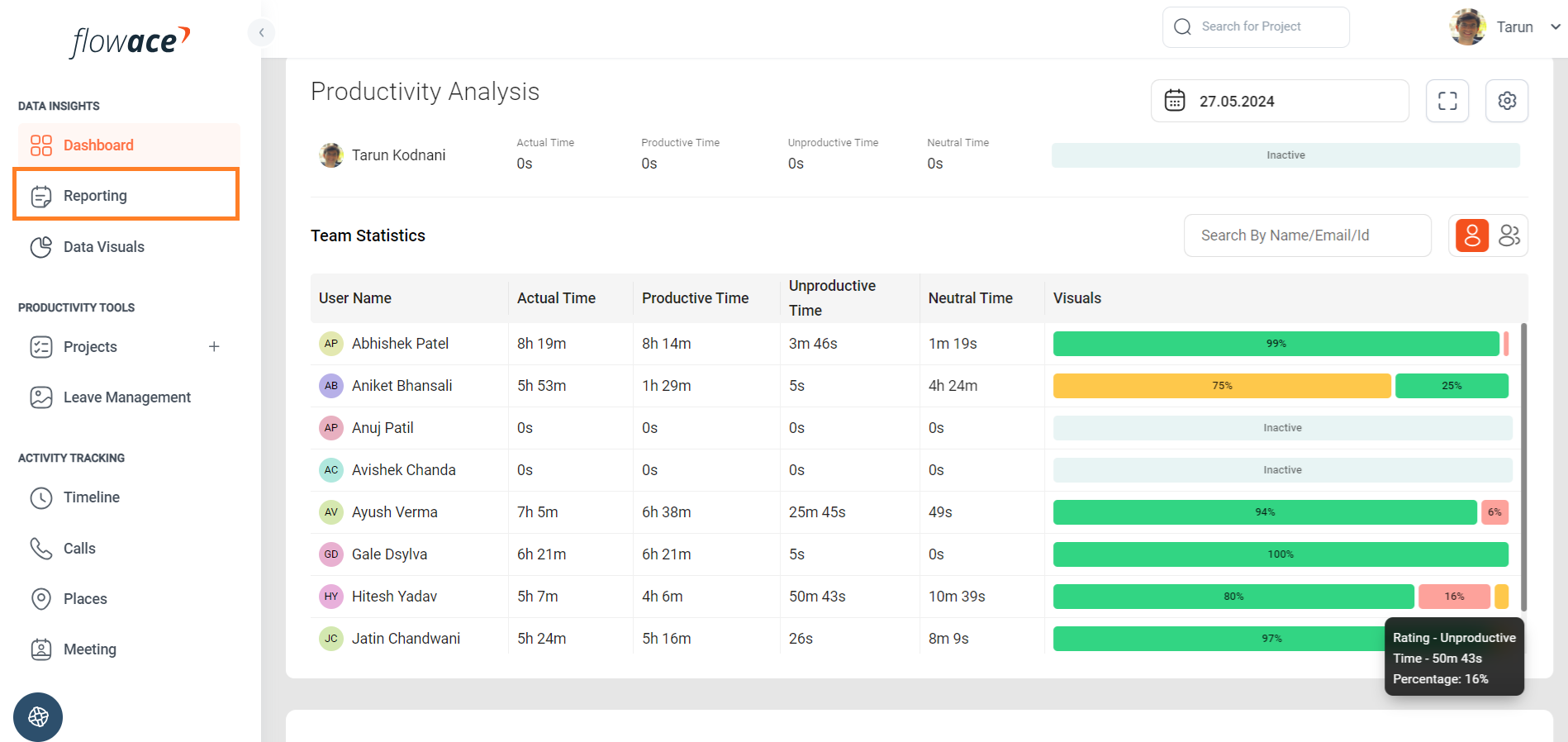
2) Click on ‘Timesheet Summary Report’

3) Click on the ‘Generate Report’ button to export the CSV.

4) Additional details for generating the report:
a) To view the sample report, expand the ‘Preview’

b) If no members are selected from the dropdown, the report will be generated for all members by default.
c) You can also select multiple members by checking the boxes next to their names.

d) Reports can be generated for different tenures as below.
- Today
- Yesterday
- Last 7 Days
- Last 30 Days
- This Month
- Last Month
- Custom Range

e) You can select the type of report depending on whether you want a summarized report or a detailed report.
- Cumulative Data
- Day-Wise Breakup
- Day-Wise and Event-Wise Breakup
f) You can select the time format of your choice.
- Time in Decimal
- Time in HH:MM:SS
g) You can select whether you want report for billable hours, non billable hours or both.
- Billable
- Non Billable
- Both
h) You can filter data via additional attributes if you have associated custom fields and values with your projects and tasks.
Updated on: 10/06/2026
Thank you!