How to generate ‘Web & App Usage’ report?
1) Navigate to ‘Reporting’ from the left-side menu
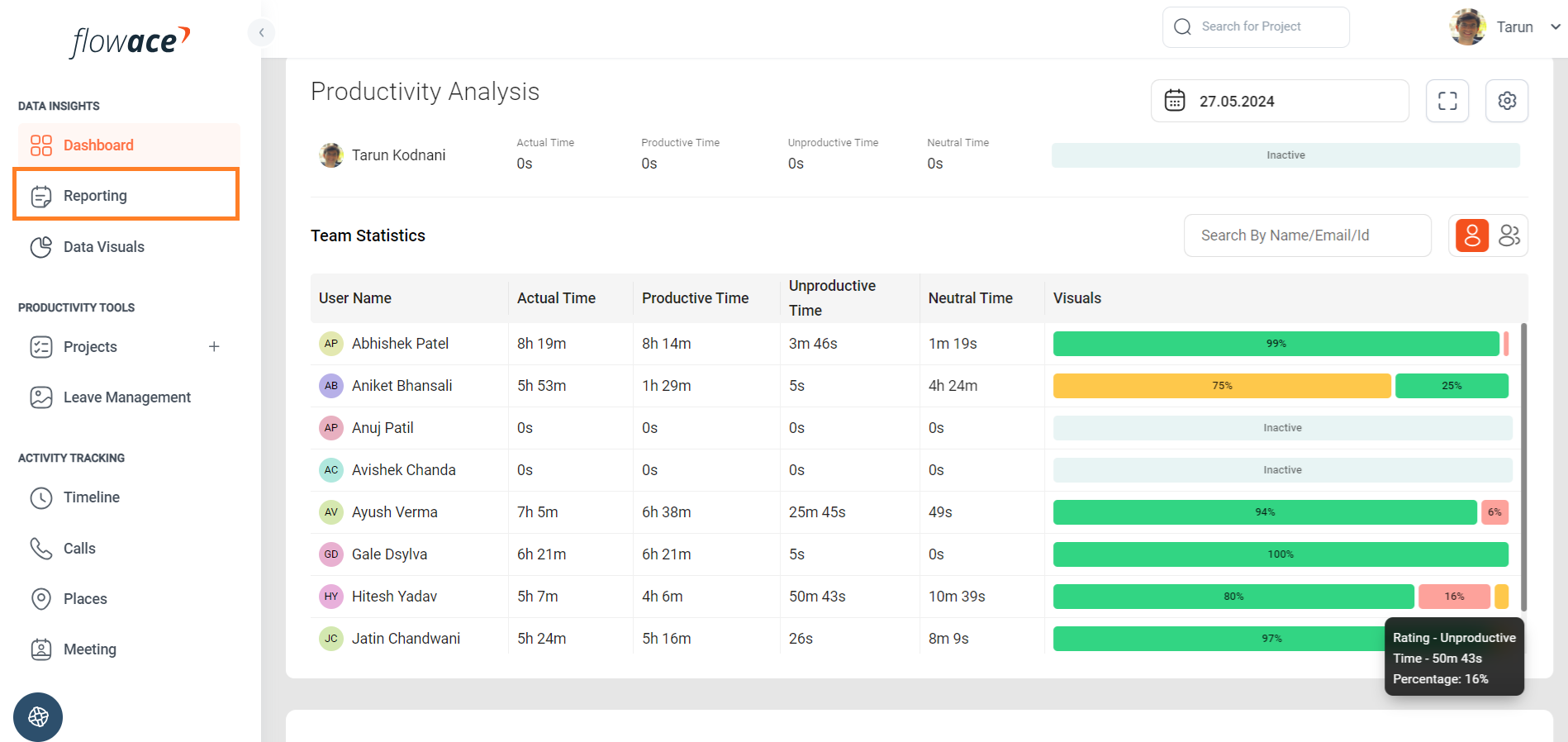
2) Click on the ‘Web App Usage Report’

3) Click on the ‘Generate Report’ button to export the CSV.

4) Additional details for generating the report:
a) To view the sample report, expand the ‘Preview’

b) If no members are selected from the dropdown, the report will be generated for all members by default.
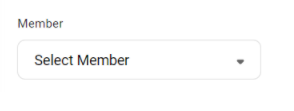
c) You can also select multiple members by checking the boxes next to their names.

d) Reports can be generated for different tenures as below.- Today
- Yesterday
- Last 7 Days
- Last 30 Days
- This Month
- Last Month
- Custom Range

e) You can decide whether you want to generate web and app usage of desktop or mobile device.
- Desktop
- Mobile App
f) You can select the time format of your choice.
- Time in Decimal
- Time in HH:MM:SS
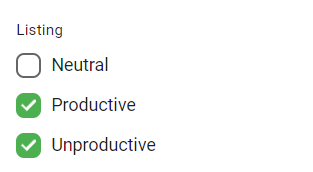
g) You can select productivity ratings as productive, unproductive or neutral.
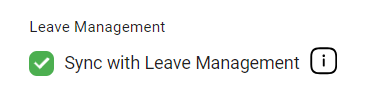
h) You can decide whether you want the report to be synced with leaves and holidays if you are using leave management on Flowace
Updated on: 10/06/2026
Thank you!