How to reopen/unarchive closed tasks in bulk?
1) Log in to the web portal and click on ‘Tasks’ from the left-side menu list.

2) Click on ‘Bulk Operations’ from the ellipses or 3-dots on the top right of your screen.
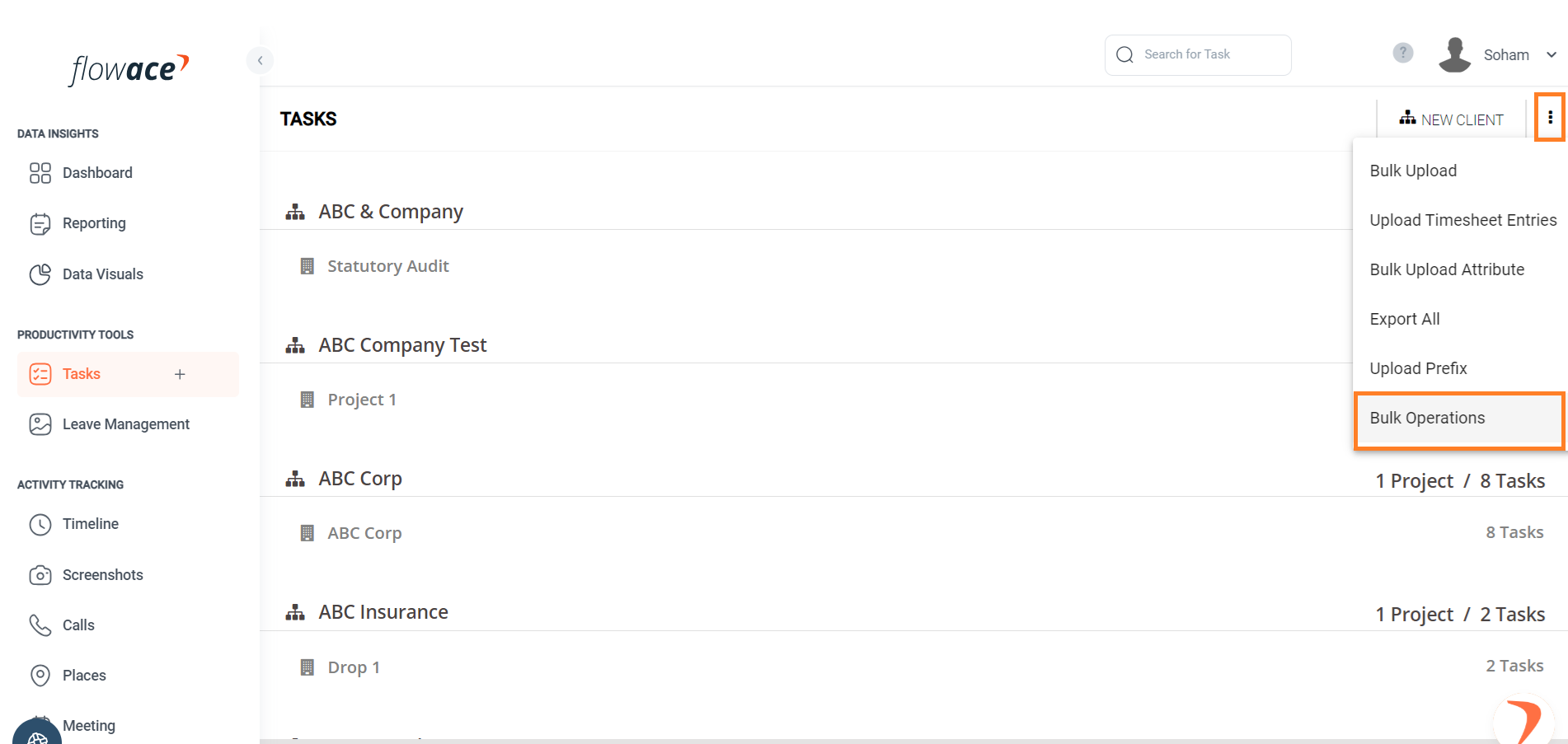
3) Click on the ‘Active Tab’ followed by a click on the ‘Export Button’ to export all archived/closed tasks.

4) Assume that the exported CSV has 5 rows corresponding to 5 tasks as illustrated below. *
*
5) If you want to reopen Task 1 and Task 2, keep 2 rows for each task and delete other rows related to archived/closed tasks.

6) Please save the file by keeping only the rows that you want to reopen or unarchive.

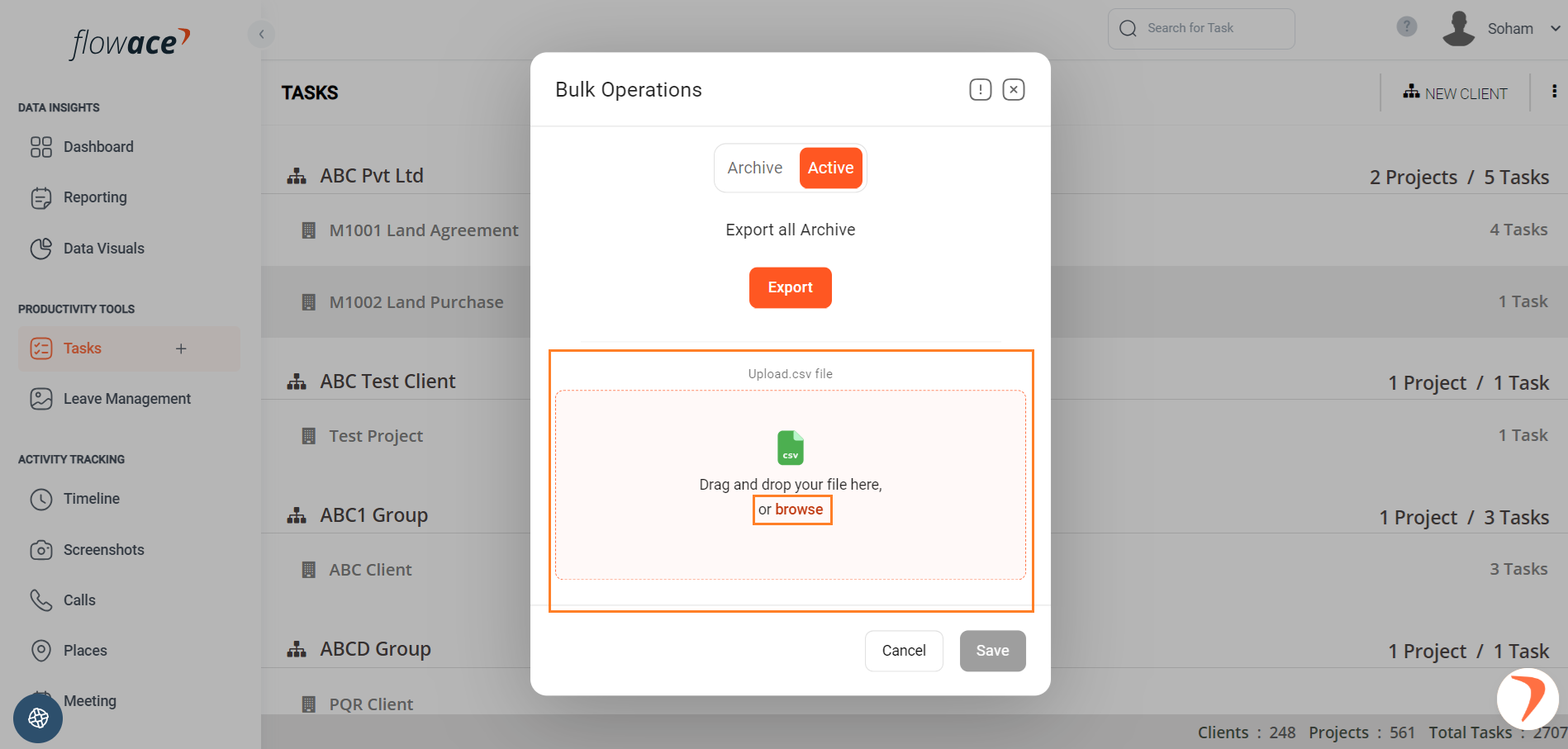
7) Drag and drop your files or click on the “browse” label to attach the CSV file.
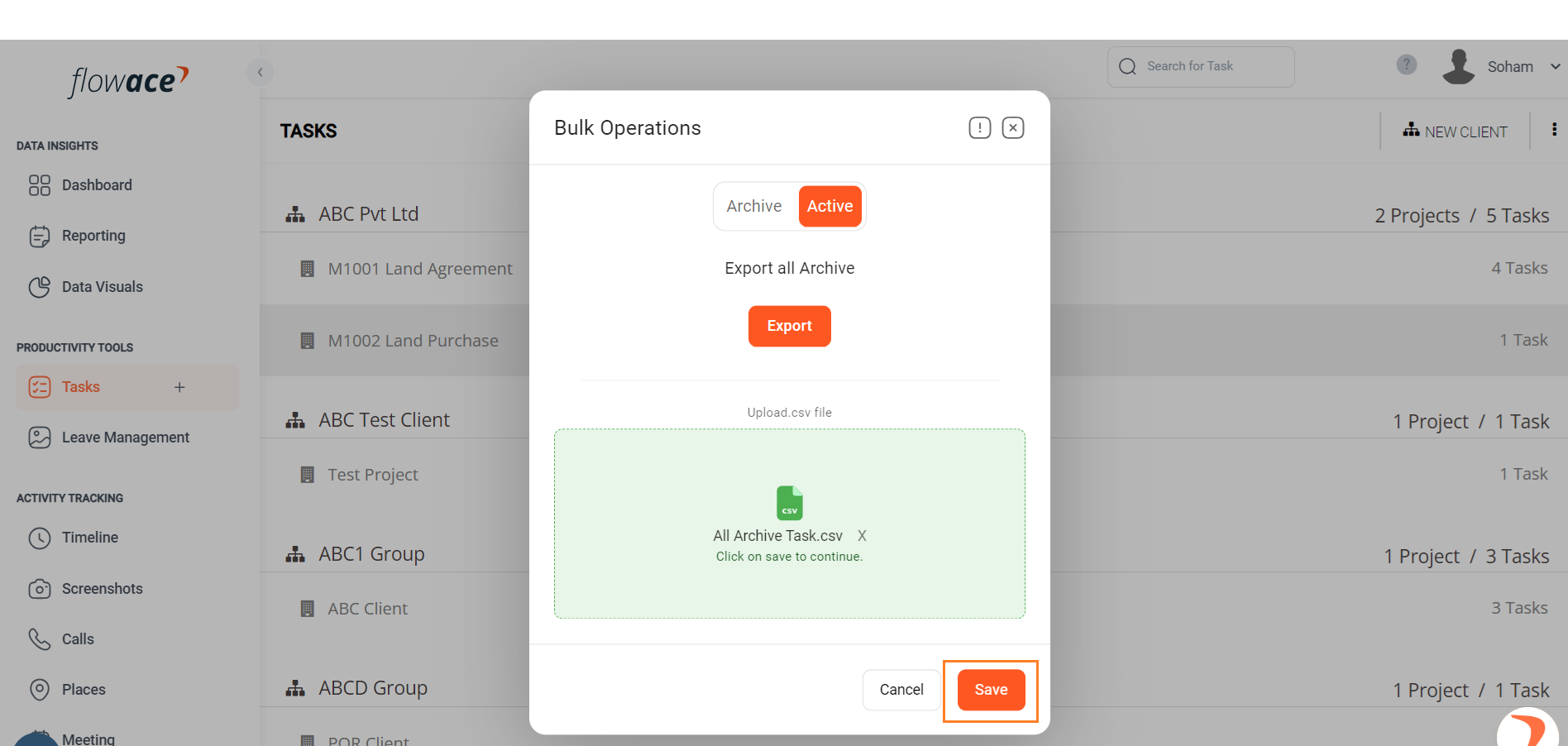
8 ) Once the file is updated successfully, please click on the “Save” button to reopen or unarchive multiple tasks in bulk.
Updated on: 10/06/2026
Thank you!